FileOutputStream
FileOutputStream is Java’s fundamental class for writing raw bytes to a file. Whether you’re saving binary data, generating a file from scratch, or copying content from one location to another, FileOutputStream gives you low-level, direct control over what lands on disk.
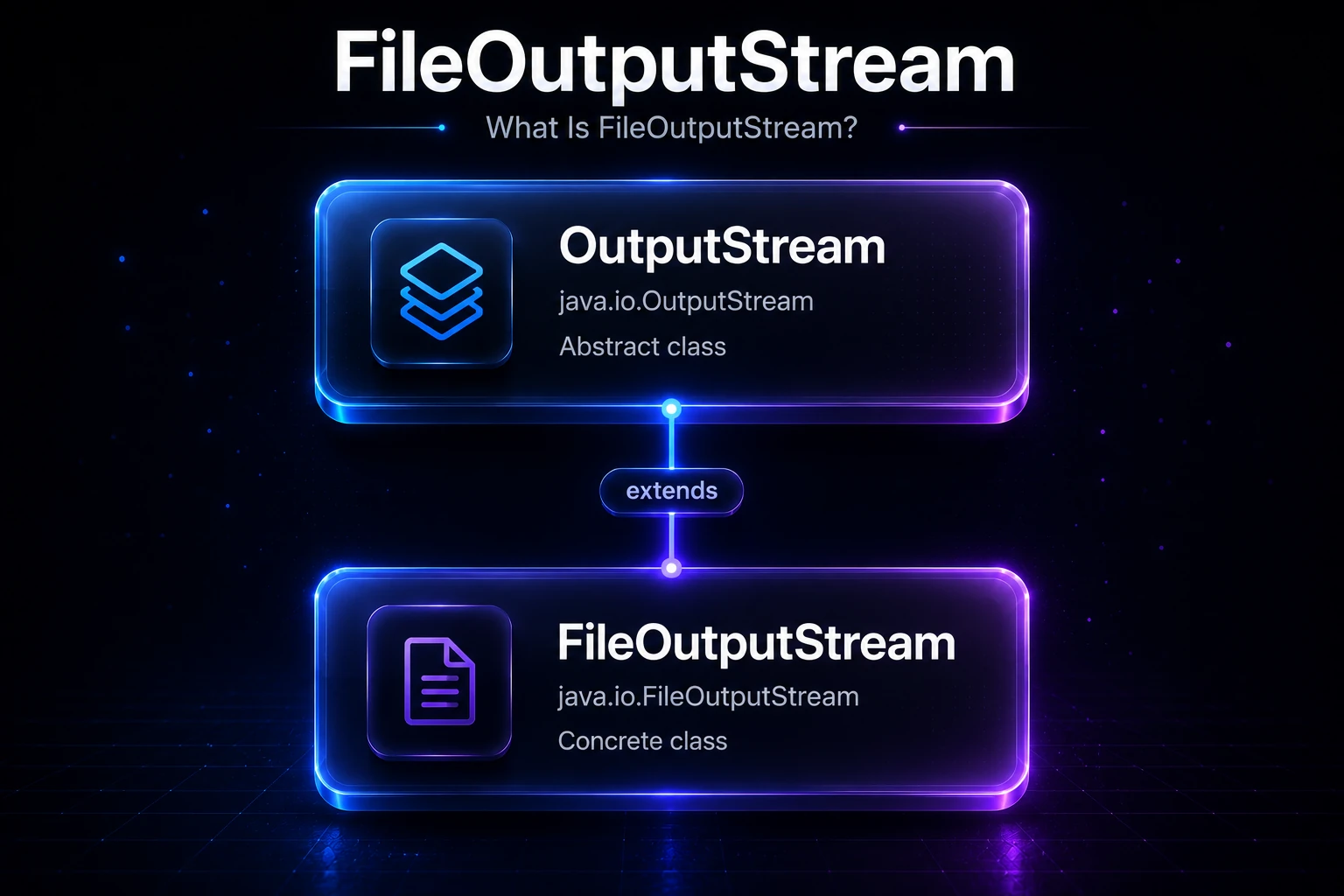
What Is FileOutputStream?
FileOutputStream extends OutputStream and lives in the java.io package. It writes data to a file one byte at a time or in bulk chunks. Because it works at the byte level, it’s perfect for binary files (images, audio, serialized objects), and also works fine for plain text when you control the encoding yourself.
OutputStream
  └── FileOutputStream
Note:
FileOutputStreamwrites bytes, not characters. For writing human-readable text with proper encoding, consider wrapping it in an OutputStreamWriter or using FileWriter directly.
Creating a FileOutputStream
You can open a FileOutputStream from a path string or a File object. By default, opening the stream overwrites the existing file (or creates a new one).
import java.io.FileOutputStream;
import java.io.File;
import java.io.IOException;

public class CreateExample {
    public static void main(String[] args) throws IOException {
        // From a path string — creates or overwrites the file
        FileOutputStream fos1 = new FileOutputStream("output.txt");

        // From a File object
        File file = new File("output.txt");
        FileOutputStream fos2 = new FileOutputStream(file);

        fos1.close();
        fos2.close();
    }
}
If the parent directory does not exist, the constructor throws a FileNotFoundException.
Append Mode
Pass true as the second argument to append to an existing file instead of overwriting it.
// Opens the file in append mode — existing content is preserved
FileOutputStream fos = new FileOutputStream("log.txt", true);
Tip: Append mode is ideal for log files where you want to keep adding entries without erasing previous runs.
Writing a Single Byte
The write(int b) method writes a single byte. Only the lowest 8 bits of the int argument are written; the upper 24 bits are ignored.
import java.io.FileOutputStream;
import java.io.IOException;

public class WriteSingleByte {
    public static void main(String[] args) throws IOException {
        try (FileOutputStream fos = new FileOutputStream("output.txt")) {
            fos.write('H');
            fos.write('i');
            fos.write('!');
        }
        System.out.println("Bytes written.");
    }
}
Output: (in output.txt)
Hi!Warning: Writing one byte at a time is extremely slow for large amounts of data because every
write()call can translate to a separate system call. Always prefer bulk writes or wrap with BufferedOutputStream in real-world code.
Writing a Byte Array (Bulk Write)
The write(byte[] b) method writes the entire byte array at once — far more efficient than single-byte writes.
import java.io.FileOutputStream;
import java.io.IOException;
import java.nio.charset.StandardCharsets;

public class WriteBulk {
    public static void main(String[] args) throws IOException {
        String content = "Hello, FileOutputStream!";
        byte[] bytes = content.getBytes(StandardCharsets.UTF_8);

        try (FileOutputStream fos = new FileOutputStream("output.txt")) {
            fos.write(bytes);
        }

        System.out.println("File written successfully.");
    }
}
Output: (in output.txt)
Hello, FileOutputStream!Tip: Always specify the charset explicitly with
getBytes(StandardCharsets.UTF_8)rather than relying on the platform’s default encoding. This keeps your output portable across different operating systems.
Writing a Portion of a Byte Array
write(byte[] b, int off, int len) writes exactly len bytes from array b, starting at index off. This is useful when your buffer is partially filled.
import java.io.FileOutputStream;
import java.io.IOException;

public class WriteRange {
    public static void main(String[] args) throws IOException {
        byte[] data = "Hello, World!".getBytes();

        try (FileOutputStream fos = new FileOutputStream("output.txt")) {
            // Write only "World" (offset 7, length 5)
            fos.write(data, 7, 5);
        }
    }
}
Output: (in output.txt)
WorldUsing try-with-resources (Recommended)
Since Java 7, the preferred way to work with FileOutputStream is inside a try-with-resources block. It closes the stream automatically — even if an exception is thrown partway through writing.
import java.io.FileOutputStream;
import java.io.IOException;
import java.nio.charset.StandardCharsets;

public class TryWithResources {
    public static void main(String[] args) {
        String[] lines = {"Line 1\n", "Line 2\n", "Line 3\n"};

        try (FileOutputStream fos = new FileOutputStream("output.txt")) {
            for (String line : lines) {
                fos.write(line.getBytes(StandardCharsets.UTF_8));
            }
        } catch (IOException e) {
            System.err.println("Write failed: " + e.getMessage());
        }

        System.out.println("Done.");
    }
}
Output: (in output.txt)
Line 1
Line 2
Line 3
Flushing the Stream
flush() forces any internally buffered bytes to be pushed to the underlying OS. For a raw FileOutputStream there is no internal Java-level buffer (unlike BufferedOutputStream), but calling flush() is still good practice — especially when the stream is wrapped inside another buffered stream.
fos.flush(); // ensures OS receives all pending dataWarning: Simply calling
flush()does not guarantee data is written to physical disk. For that, you needgetFD().sync()(see the Under the Hood section), which is rarely needed in everyday applications.
Useful Methods
| Method | Description |
|---|---|
void write(int b) | Writes a single byte (lowest 8 bits of b) |
void write(byte[] b) | Writes the entire byte array |
void write(byte[] b, int off, int len) | Writes len bytes from array starting at off |
void flush() | Flushes any buffered data to the OS |
void close() | Closes the stream and releases the file descriptor |
FileDescriptor getFD() | Returns the underlying file descriptor |
FileChannel getChannel() | Returns the underlying FileChannel for NIO operations |
Copying a File with FileOutputStream
A classic, practical use case — copying a file by pairing FileInputStream with FileOutputStream:
import java.io.FileInputStream;
import java.io.FileOutputStream;
import java.io.IOException;

public class FileCopy {
    public static void main(String[] args) {
        String source = "original.png";
        String destination = "copy.png";

        try (FileInputStream fis = new FileInputStream(source);
             FileOutputStream fos = new FileOutputStream(destination)) {

            byte[] buffer = new byte[4096];
            int bytesRead;

            while ((bytesRead = fis.read(buffer)) != -1) {
                fos.write(buffer, 0, bytesRead);
            }

            System.out.println("File copied successfully.");
        } catch (IOException e) {
            System.err.println("Copy failed: " + e.getMessage());
        }
    }
}
Output:
File copied successfully.Appending Multiple Writes to a Log File
Here’s a realistic example of appending log entries over multiple runs:
import java.io.FileOutputStream;
import java.io.IOException;
import java.nio.charset.StandardCharsets;
import java.time.LocalDateTime;

public class SimpleLogger {
    public static void log(String message) throws IOException {
        String entry = "[" + LocalDateTime.now() + "] " + message + "\n";
        // append = true keeps existing log content
        try (FileOutputStream fos = new FileOutputStream("app.log", true)) {
            fos.write(entry.getBytes(StandardCharsets.UTF_8));
        }
    }

    public static void main(String[] args) throws IOException {
        log("Application started");
        log("Processing data...");
        log("Application stopped");
        System.out.println("Log entries written.");
    }
}
Output: (in app.log, new entries added on each run)
[2026-06-13T10:00:01] Application started
[2026-06-13T10:00:01] Processing data...
[2026-06-13T10:00:01] Application stopped
Under the Hood
When you construct a FileOutputStream, the JVM calls the OS open() system call, which returns a file descriptor — a small integer index into the process’s open-file table. The JVM stores this in a FileDescriptor object.
Each write(int b) call (single-byte form) typically translates to a native write system call on the OS, moving one byte from the JVM heap into kernel space and then to the file. System calls involve a context switch from user mode to kernel mode, which has measurable overhead. Writing one byte at a time means paying this overhead on every iteration — devastating for performance.
The bulk write(byte[] b, int off, int len) form makes one system call for len bytes, amortizing the context-switch cost across many bytes. Wrapping with BufferedOutputStream goes further: it accumulates writes in an 8 KB in-memory buffer and only calls the OS when the buffer is full or flush() is called, reducing system call frequency dramatically.
Durability vs. Performance
When write() returns, data is in the OS’s page cache (kernel memory), not necessarily on physical disk. The OS flushes its page cache to disk asynchronously for performance. If you need durability guarantees (e.g., for a database or financial log), call:
fos.flush();          // push Java buffers → OS
fos.getFD().sync();   // push OS page cache → physical disk (fsync)
getFD().sync() is expensive — it blocks until the drive confirms the write — so only use it when data integrity is critical.
The getChannel() Bridge to NIO
FileOutputStream.getChannel() returns the underlying FileChannel, letting you use the NIO API (direct buffers, memory-mapped files, scatter/gather writes) without opening a separate handle. This is useful for high-throughput scenarios. Learn more at NIO.2: Path & Files.
Common Pitfalls
- Accidentally overwriting a file — the default constructor truncates existing content. If you want to append, remember to pass
trueas the second argument. - Not closing the stream — a leaked
FileOutputStreamholds an OS file descriptor open and, on Windows, may keep the file locked so other processes cannot access it. Always use try-with-resources. - Relying on implicit flushing — unlike
PrintStream,FileOutputStreamdoes not auto-flush. Wrap withBufferedOutputStreamand callflush()before closing if you hand the stream to another component. - Encoding issues — when converting a
Stringto bytes withgetBytes(), always specifyStandardCharsets.UTF_8(or whatever encoding your readers expect) instead of the platform default. - Partial writes —
write(byte[])is not guaranteed to write all bytes atomically on every platform when used with very large arrays. Check the return value or usewrite(b, off, len)inside a loop for robust code.
Related Topics
- FileInputStream — the companion class for reading raw bytes from a file
- BufferedOutputStream — wrap
FileOutputStreamfor much faster writes with an internal buffer - Java I/O — overview of the entire
java.iostream hierarchy - Byte vs Character Streams — when to use byte streams versus character streams
- FileWriter — character-based file writing with automatic encoding handling
- NIO.2: Path & Files — modern high-performance file I/O using
java.nio.file